Ansible Scheduled Tasks: Cron Jobs & at Module for Timed Execution
By Luca Berton · Published 2024-01-01 · Category: installation
How to schedule tasks with Ansible using cron and at modules. Create cron jobs, one-time scheduled tasks, and systemd timers with practical playbook examples.
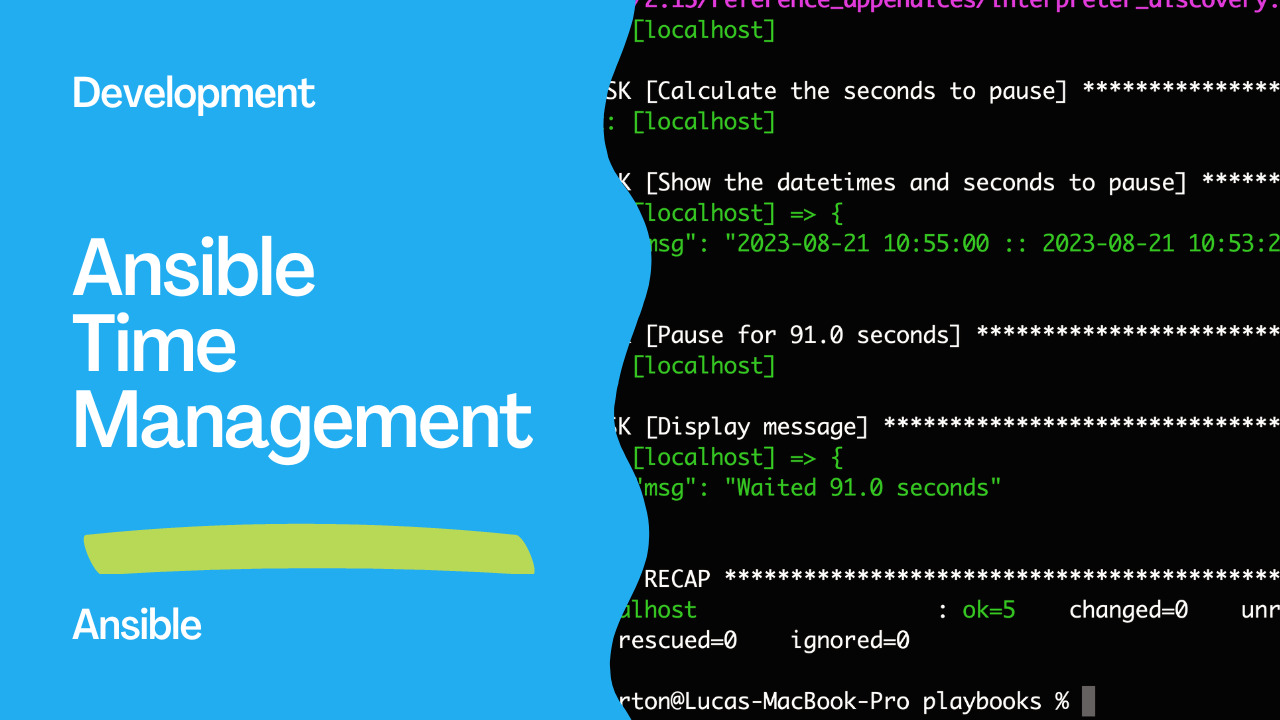
Introduction
In IT infrastructure management, automation is a key component that empowers administrators to streamline repetitive tasks and ensure consistent operations. Ansible, a popular open-source automation tool, offers extensive capabilities for orchestrating tasks across a wide range of systems. One intriguing aspect of Ansible is its ability to execute tasks at specific times, enabling administrators to schedule actions with precision. This article will explore a practical example of how Ansible can execute tasks at a predetermined time, specifically at 10:55.The Power of Scheduled Execution
Imagine a scenario where a system administrator needs to perform a task on a fleet of servers every day at exactly 10:55. This task might involve updating configurations, performing backups, or any other action necessary to maintain system health and security. Manually executing such tasks can be time-consuming, error-prone, and disruptive, especially in a large-scale environment.Ansible addresses this challenge by allowing administrators to define and schedule tasks for execution at specific times. This reduces the required manual effort and ensures consistency and accuracy in task execution.
See also: Ansible wait_for & Delayed Tasks: Time Management in Playbooks
Links
- https://docs.ansible.com/ansible/latest/collections/ansible/builtin/wait_for_module.html
- https://docs.ansible.com/ansible/latest/playbook_guide/playbooks_vars_facts.html
Understanding the Playbook
To Playbooknstrate scheduled execution with Ansible, we will walk through an Ansible playbook that accomplishes the following:- Calculates the time remaining until 10:55.
- Displays the current datetime, target datetime (10:55), and time remaining in seconds.
- Pauses the playbook execution until the specified time (10:55) is reached.
- Displays a message indicating the completion of the wait period.
---
- name: Execute at 10:55
  hosts: all
  vars:
   var_wait_time: "10:55:00"
   var_wait_datetime: "{{ ansible_date_time.year }}-{{ ansible_date_time.month }}-{{ ansible_date_time.day }} {{ var_wait_time }}"
   var_current_datetime: "{{ ansible_date_time.date }} {{ ansible_date_time.time }}"
  tasks:
    - name: Calculate the seconds to pause
      ansible.builtin.set_fact:
       var_wait_seconds: "{{ ((var_wait_datetime | to_datetime) - (var_current_datetime | to_datetime)).total_seconds() }}"
      delegate_to: localhost
    - name: Show the datetimes and seconds to pause
      ansible.builtin.debug:
       msg: "{{ var_wait_datetime }} :: {{ var_current_datetime }} :: {{ var_wait_seconds }}"
      delegate_to: localhost
    - name: Pause for {{ var_wait_seconds }} seconds
      ansible.builtin.wait_for:
        timeout: "{{ var_wait_seconds | int }}"
      when: var_wait_seconds | int > 0
    - name: Display message
      ansible.builtin.debug:
        msg: "Waited {{ var_wait_seconds }} seconds"
This playbook showcases using Ansible’s datetime manipulation functions, variable calculations, and the wait_for module to achieve the desired scheduled execution.
Execution
ansible-playbook -i inventory time.ymlOutput
PLAY [Execute at 10:55] *****************************************************************

TASK [Gathering Facts] ******************************************************************
ok: [localhost]

TASK [Calculate the seconds to pause] ***************************************************
ok: [localhost]

TASK [Show the datetimes and seconds to pause] ******************************************
ok: [localhost] => {
    "msg": "2023-08-21 10:55:00 :: 2023-08-21 10:53:29 :: 91.0"
}

TASK [Pause for 91.0 seconds] ***********************************************************
ok: [localhost]

TASK [Display message] ******************************************************************
ok: [localhost] => {
    "msg": "Waited 91.0 seconds"
}

PLAY RECAP ******************************************************************************
localhost                  : ok=5    changed=0    unreachable=0    failed=0    skipped=0    rescued=0    ignored=0
See also: Securely Automate Sudo Passwords in Ansible Playbooks
Conclusion
Automating tasks through Ansible’s scheduled execution capabilities gives administrators a powerful tool for maintaining systems efficiently and consistently. Administrators can adapt and extend this functionality by using the provided playbook as a template to suit their specific requirements. Whether performing routine maintenance, deploying updates, or any other task, Ansible’s automation capabilities help streamline operations and free up valuable time for IT teams to focus on more strategic activities.Create Cron Job
- name: Schedule daily backup at 2 AM
  ansible.builtin.cron:
    name: "daily backup"
    minute: "0"
    hour: "2"
    job: "/opt/scripts/backup.sh >> /var/log/backup.log 2>&1"
    user: root
  become: true
See also: Automate Redmine Installation on Ubuntu LTS 22.04 with Ansible
Cron Schedule Examples
# Every 5 minutes
- cron:
    name: "health check"
    minute: "*/5"
    job: "/opt/scripts/healthcheck.sh"

# Every Monday at 9 AM
- cron:
    name: "weekly report"
    minute: "0"
    hour: "9"
    weekday: "1"
    job: "/opt/scripts/report.sh"

# First day of each month
- cron:
    name: "monthly cleanup"
    minute: "0"
    hour: "3"
    day: "1"
    job: "/opt/scripts/cleanup.sh"

# Business hours only (Mon-Fri, 9-17)
- cron:
    name: "business hours check"
    minute: "0"
    hour: "9-17"
    weekday: "1-5"
    job: "/opt/scripts/check.sh"
Cron with Environment Variables
- ansible.builtin.cron:
    name: PATH
    env: true
    job: /usr/local/bin:/usr/bin:/bin
    user: deploy

- ansible.builtin.cron:
    name: "run app task"
    minute: "30"
    hour: "*/4"
    job: "cd /opt/myapp && python3 task.py"
    user: deploy
Remove Cron Job
- ansible.builtin.cron:
    name: "old backup"
    state: absent
    user: root
  become: true
One-Time Scheduled Task (at)
- name: Schedule one-time task
  ansible.posix.at:
    command: "/opt/scripts/maintenance.sh"
    count: 30
    units: minutes

- name: Schedule at specific time
  ansible.posix.at:
    command: "reboot"
    count: 1
    units: hours
  become: true
Systemd Timer (Modern Alternative)
- name: Create systemd service
  ansible.builtin.copy:
    content: |
      [Unit]
      Description=Daily Backup

      [Service]
      Type=oneshot
      ExecStart=/opt/scripts/backup.sh
      User=backup
    dest: /etc/systemd/system/backup.service
  become: true

- name: Create systemd timer
  ansible.builtin.copy:
    content: |
      [Unit]
      Description=Run backup daily

      [Timer]
      OnCalendar=*-*-* 02:00:00
      Persistent=true

      [Install]
      WantedBy=timers.target
    dest: /etc/systemd/system/backup.timer
  become: true

- ansible.builtin.systemd:
    name: backup.timer
    state: started
    enabled: true
    daemon_reload: true
  become: true
Windows Scheduled Tasks
- community.windows.win_scheduled_task:
    name: DailyBackup
    actions:
      - path: C:\Scripts\backup.ps1
    triggers:
      - type: daily
        start_boundary: '2026-01-01T02:00:00'
    username: SYSTEM
    state: present
FAQ
Cron vs systemd timers?
Systemd timers offer better logging (journalctl), dependency management, and Persistent=true (runs missed jobs). Cron is simpler and more portable.
How do I list all cron jobs?
- command: crontab -l -u {{ item }}
  loop: [root, deploy, www-data]
  register: crons
  changed_when: false
  ignore_errors: true
Can I use Ansible to run tasks on a schedule?
Ansible itself doesn't run on a schedule. Use AWX/AAP for scheduled playbook runs, or trigger playbooks from cron/systemd timers.
Related Articles
Category: installation